
Let’s walk through the steps how to set up 2FA on your billing and SSO account (Client Portal).
-
Login to Client Area first
- Here is link to login to Client Area.
-
Access Security Settings
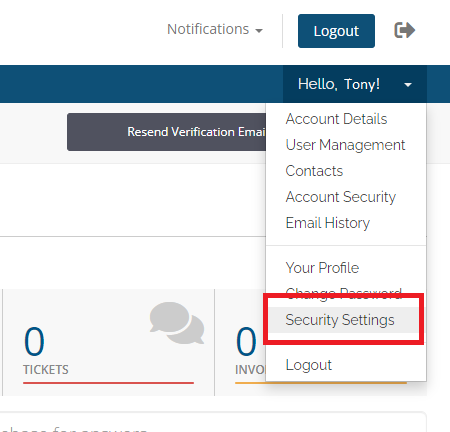
- Once logged in, navigate to "Hello, [Client's Name!]" than click on "Security Settings".
-
Enable Two-Factor Authentication
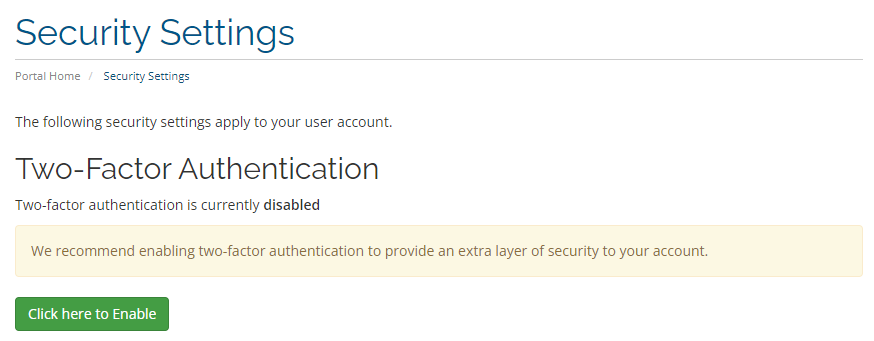
- On the Security Settings page, they will see an option to Activate Two-Factor Authentication > Click here to Enable.
Choose Time-Based Tokens
- After clicking Enable, you will be prompted to choose Time-Based Tokens as 2FA method.
- This method works with apps like Google Authenticator, Authy, or Duo etc.
For Android Users: Google Authenticator | Authy | Duo
For Apple Users: Google Authenticator | Authy | Duo
-
Scan the QR Code
- A QR code will be displayed. You will need to open your authenticator app (Google Authenticator, Authy, etc.) and scan the QR code displayed on your screen.
-
Enter the Authentication Code
- After scanning the QR code, the app will generate a time-based token.
- You should enter the code from the app into the provided field in our Client Portal and click Submit.
- Now, each time you logs into your account, it will be prompted to enter the time-based token generated by their authenticator app.
- If the time-based token matches, it will be granted access.
Client Support for 2FA
If you lost access with the Authenticator App, please send us email via registered email address and we will reset it for you.
Note that other than registered email address request will be automatically rejected by our Security Team.
